Worked example: the skincare instruction
The skincare prompt describes the bottle, pedestal, background and light. It also includes “Ask me to confirm before generating”, an instruction to the assistant used in that session.
In a direct image generator, keep the scene description and remove conversational instructions from your working copy. The original text remains available on the material page.
Save the tool, model, image format and submitted text with your result so you can revisit the setup.
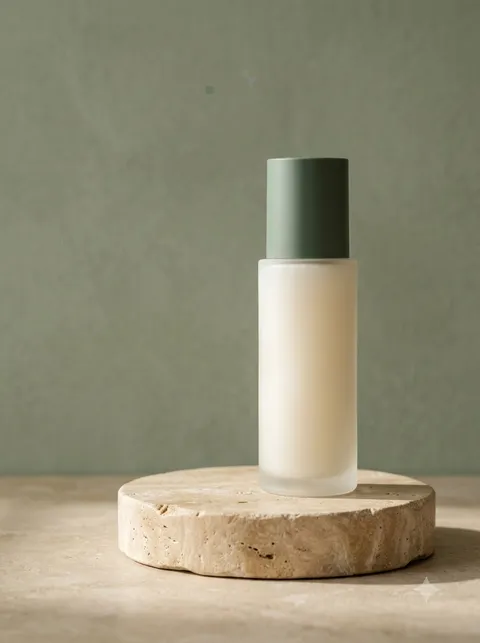
Skincare on limestone
Light from the upper left gives the bottle a lit side, a shaded side and a contact shadow on the pedestal.
Skincare on limestone
Start with the shown result
Open an image and check the prompt, model and format listed beside it. The library’s current examples were generated in Google Flow.
Copy and set up
Press Copy prompt and paste the text into your image-generation tool. Select an available model and set the image format; the current examples use portrait 3:4.
Compare the first result
Compare the subject, composition, material and light with the example. Inspect edges, reflections and small objects at full size, then adjust the text for your brief.
If copying fails
Some browsers restrict clipboard access. The full prompt remains selectable; use your device’s normal text-selection and copy controls. On a phone, you can also open the page in your usual browser.
Keep useful versions
Save the text that produced your own result along with the date, model and settings. If you change it, keep that version separately. This is more informative than remembering only the title of the example.
Further reading: Google DeepMind's image prompting guide.